

How to Manage QA or Maintenance design enhancements
Document potential design enhancements for the app. This allows us to present suggestions to the client—either to encourage them to adopt a maintenance plan or, if they’re already on one, to serve as a clear guide for the development team
Maintenance Projects:
When working on maintenance projects in Bubble and FlutterFlow, it's important to maintain a consistent Figma file structure. This applies to both the internal and client-facing files.
🔖 Pages Structure
✅ Project Cover
❖ MAIN DESIGNS
-
HF Wireframe – Original design reference
Below is an example of how the file for “The Attributes” is organized:
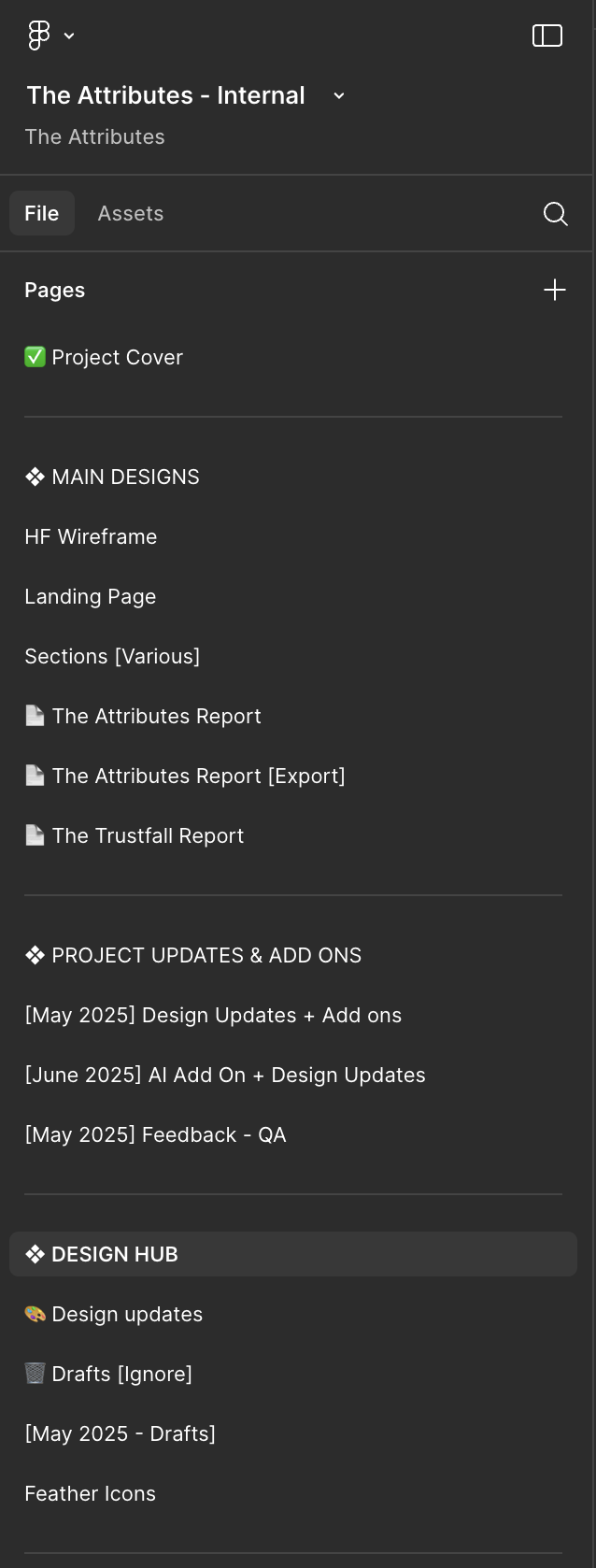
❖ PROJECT UPDATES & ADD-ONS
-
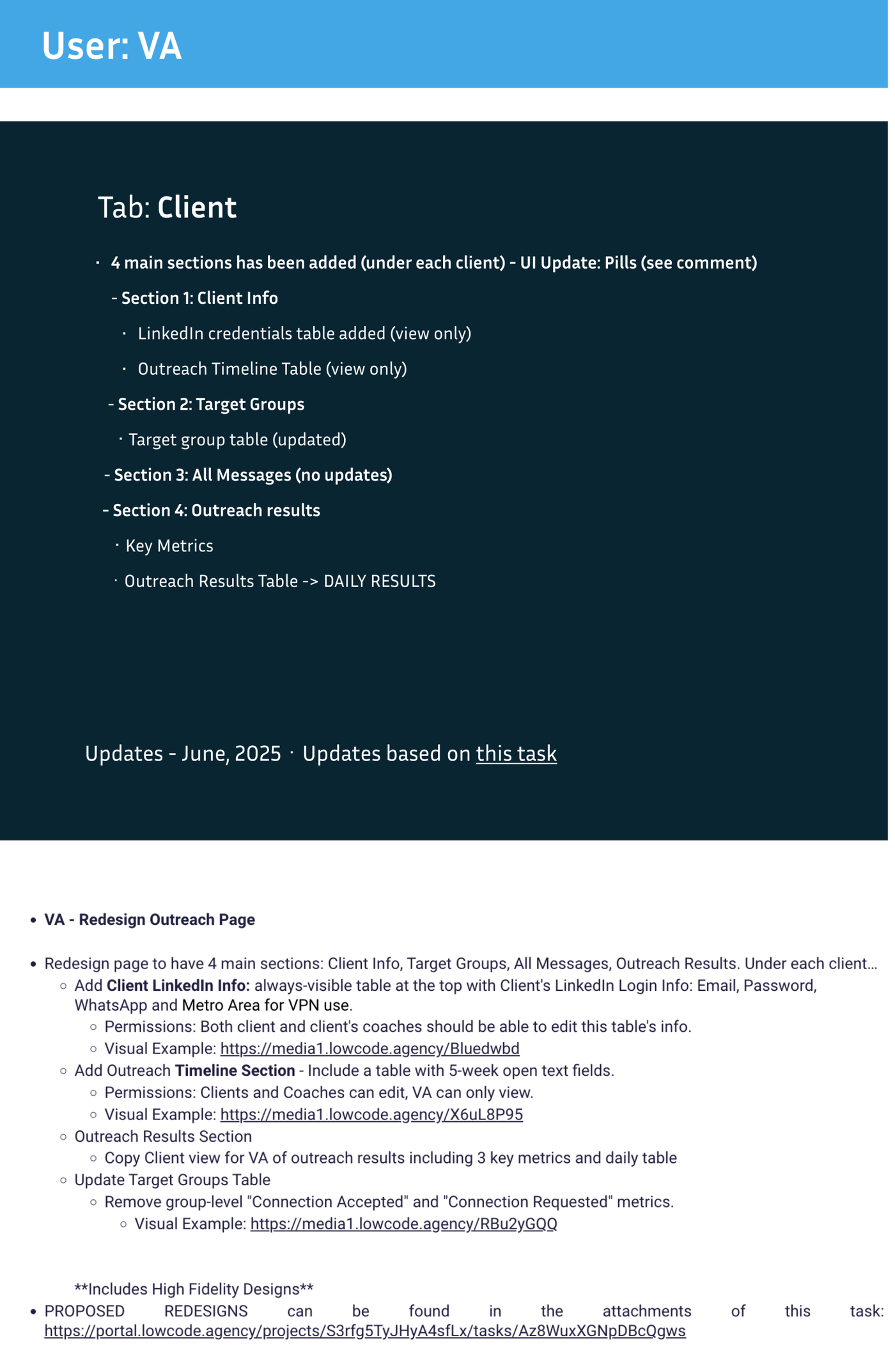
🟠 [June, 2025] VA & Client Updates
Designers must include the following:

-
A card summarizing requested changes, with status labels (e.g., Updated, Not Updated). At the end of it, there must be a link to Plutio's task
-
The old screen, labeled "View of current design"
-
A section for Add-ons, where notes should explain the specific changes that were implemented
❖ DESIGN HUB
-
🎨 UI Kit & Grids
-
📁 Brand Assets & Design Elements
-
🗑️ Drafts (To be ignored)
🔒 Note: The only element that should remain internal is the note detailing which parts of the design the designer has already worked on. This note should not be included in the client-facing file.
QA structure:
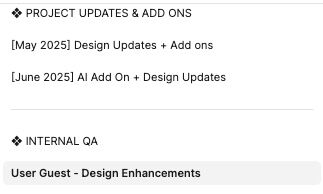
❖ INTERNAL QA
{User Name} – Design Enhancements
Use one page per user, and within each page, organize content by dividing it by month and by tabs.
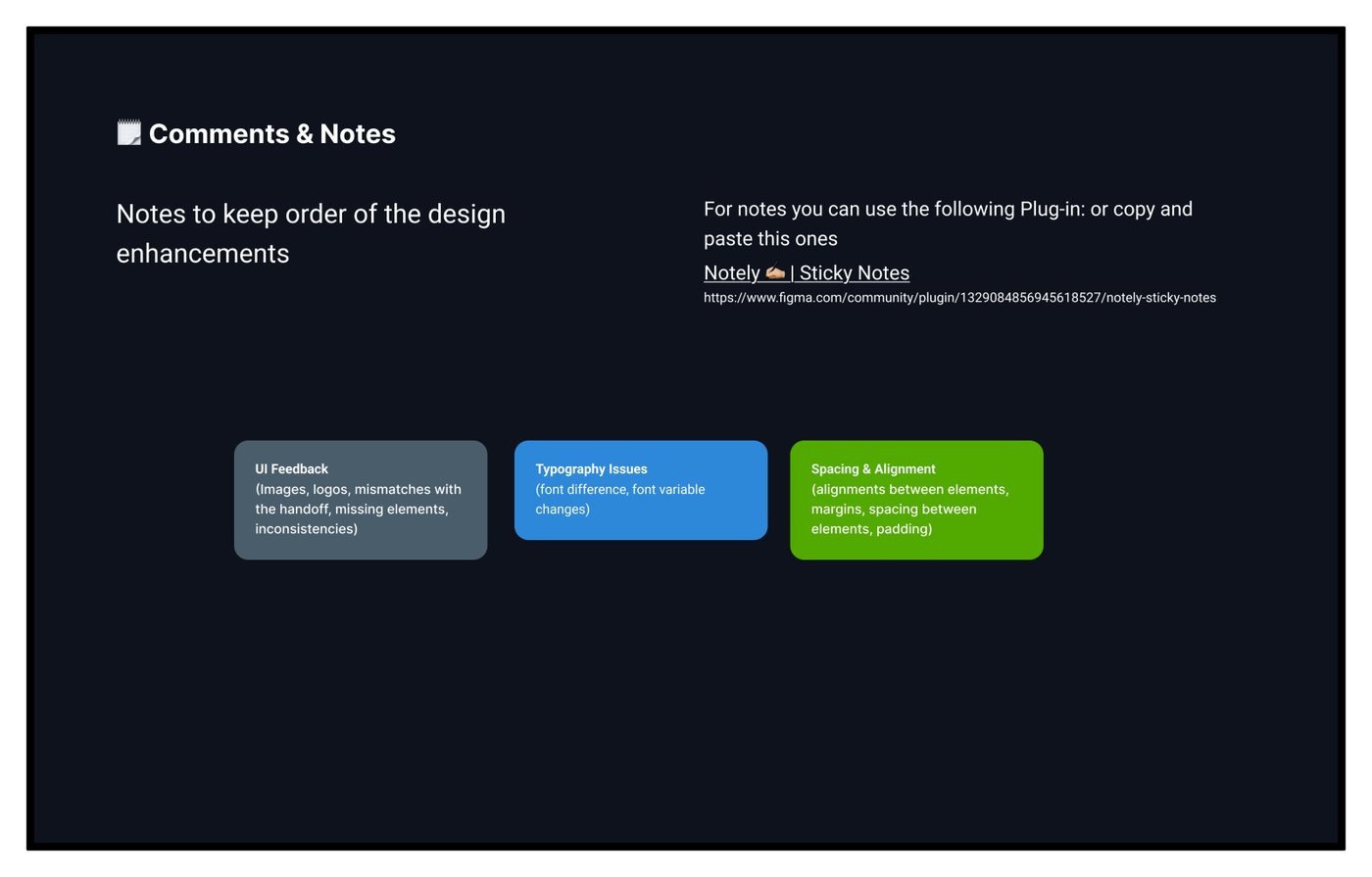
At the top of each page, include a color-coded key for the notes.
Color codes may vary slightly depending on the app, but the most important thing is to standardize them and include a reference in the QA header.
Suggested Color Coding:
-
UI Feedback – Dark Gray (Images, logos, mismatches with the handoff, missing elements, inconsistencies)
-
Typography Issues – Blue (font difference, font variable changes)
-
Spacing & Alignment – Green (alignments between elements, margins, spacing between elements, padding)
Task Creation:
Follow these steps to notify the Project Manager about design enhancements identified during QA or as part of a maintenance plan.
-
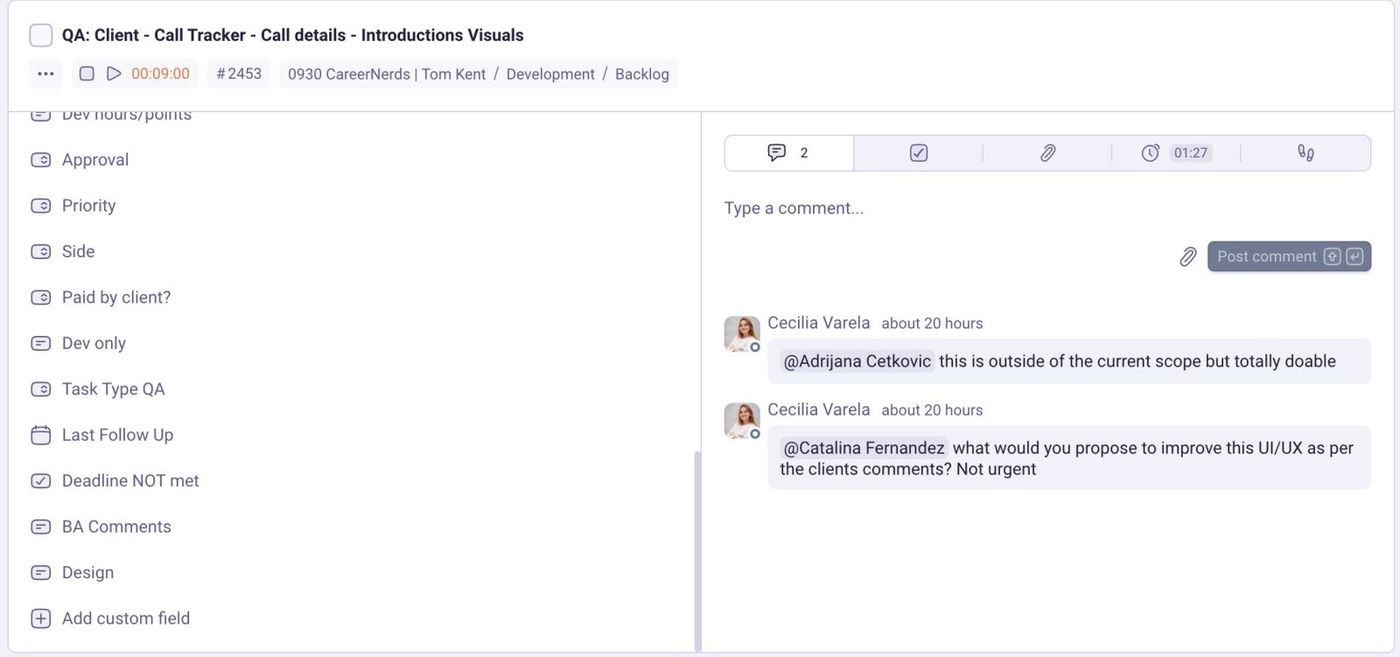
Update the Design Field in Plutio
-
Client Visibility
-
The Design section is hidden from the client, so you don’t need to worry about them seeing the design proposal.
-
-
Notify the Project Manager
-
After adding the link, comment on the task and tag your project manager to keep them informed.
-
Example comment:
"I have added a proposal for the requested design update in the Design custom field."
-
-
Enhance Communication via Slack
-
Post an update in Slack, mentioning the status of the request.
-
Include the link to the Plutio task to make it easy to find, as multiple notifications can sometimes cause delays.
-

Following these steps will help maintain clarity and ensure that design adjustments are properly tracked and communicated.