Building Refinement Assets (Sitemap)
Building the Sitemap
Purpose
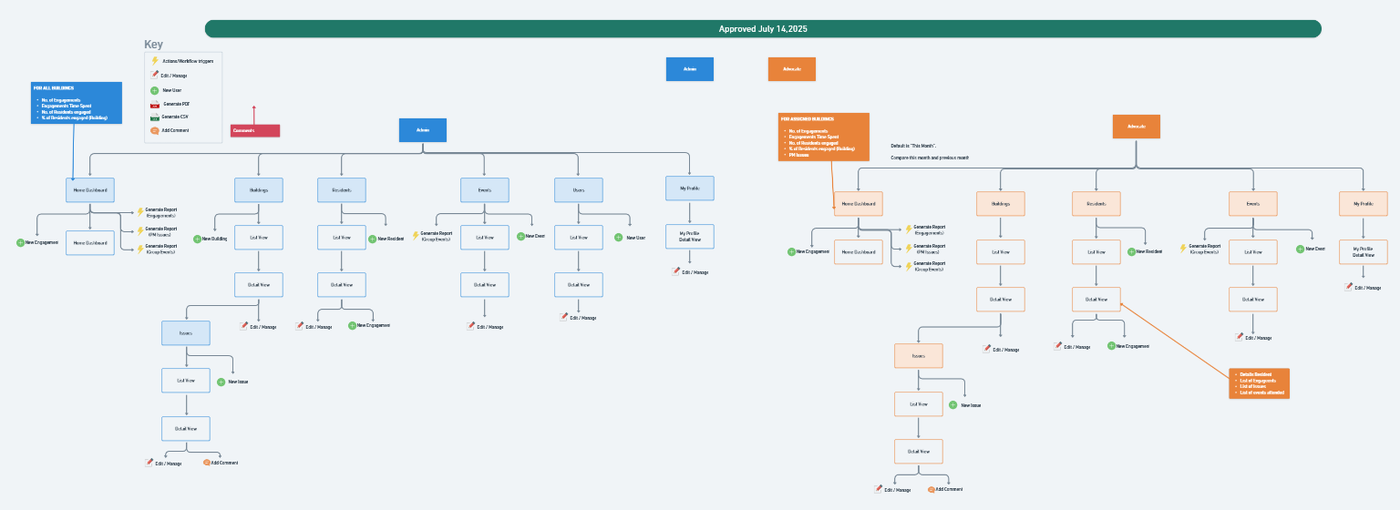
To establish a standardized method for creating User Flow diagrams that visually represent what each user role will see and do in the app. These diagrams provide clarity on the available screens, views, and user actions, and serve as the primary input for the next stage: wireframing during the Design phase.
Objectives of the User Flows
Each User Flow diagram must:
Represent the hierarchical structure of screens available to a user role.
Specify the type of data view used on each screen (e.g., List, Calendar, Kanban).
Highlight if a Detail Screen is available, and what is shown on it.
Identify what actions the user can take at each level (e.g., add, edit, trigger workflow).
Step-by-Step Procedure
🔹 1. One Diagram per User Role
For every User Role defined in the Project Scope, create a corresponding User Flow.
Each diagram should be color-coded, using a distinct color per role.
All diagrams are created in a FigJam Board, within the same document used for the Project Scope.
Reference the Whimsical board link in the corresponding task on Plutio.
🔹 2. Build the User Flow Hierarchy
Use a structured top-down approach:
Top Level – Start with a box that identifies the User Role (e.g., Admin, Client, Technician).
Second Level – Add all the Tabs or Screens the user can access in the app (e.g., Dashboard, Requests, Settings).
Third Level – For each screen:
Indicate the View type (e.g., List View, Calendar View, Card/Grid View).
Fourth Level – Specify if there is a Detail View for each item, and what key data is shown.
Fifth Level – Add available Actions the user can take within the view:
(e.g., Add New, Edit, Delete, Trigger Notification, Start Workflow, Comment, Export).
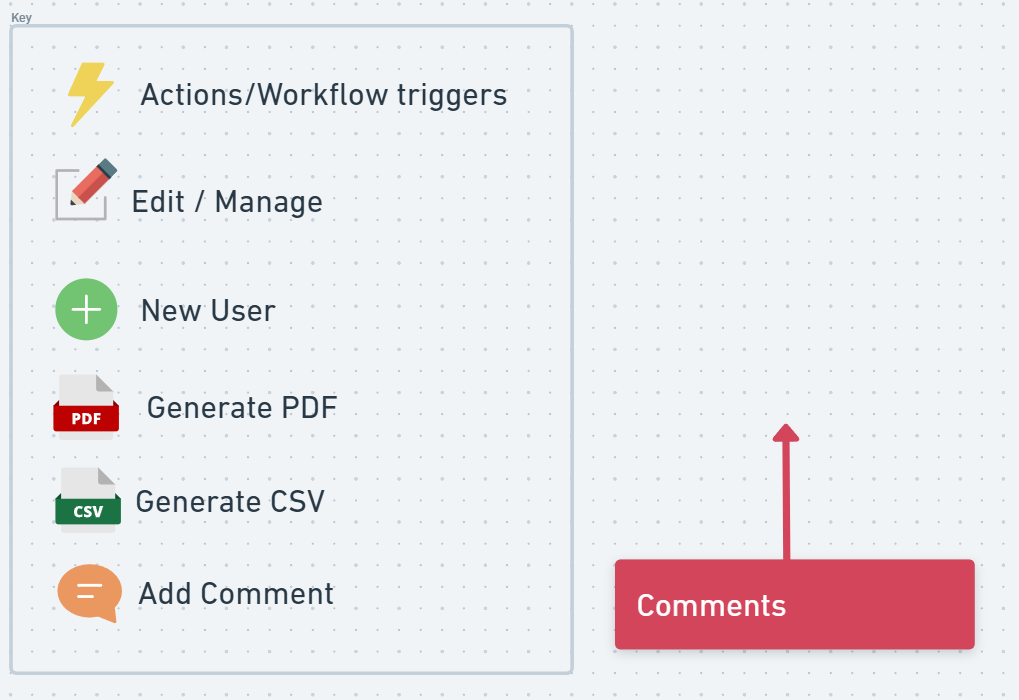
Any Form, Action Interaction or Additional Comment / Note should be identified with the corresponding symbol according to the following Key:
🔹 3. Use Process Flow as Source of Truth
Leverage the previously confirmed Process Flow to:
Identify which user roles interact with which objects.
Detect what actions need to be supported and what screens are required.
Cross-reference forms and detail views already defined in the process logic.
🔹 4. Validate with the Client (Optional)
During the Refinement Calls, and when the User Flows are finalized, BA shouls display and give a walkthrough of the User Flows to get client's approval.
This step ensures full alignment and shared understanding of each user’s experience across all stakeholders.
Notes
All User Flows must be kept in the same FigJam Board within the Project Scope Document.
Deliverable
A complete set of User Flow diagrams—one per user role—detailing screens, views, and available actions, built in FigJam and linked in the scope documentation via Plutio.