

Building Refinement Assets - Datasheet
Building the Datasheet
Purpose
The Datasheet is a structured, tab-based document used to define all the functional elements of the app that relate to data, forms, statuses, choices, notifications, user permissions, and system behaviors. It acts as a bridge between the Refinement stage and the Design/Development stages, ensuring clarity, consistency, and traceability across the scope.
Format & Structure
The Datasheet is typically created in Google Sheets using this Template, and is composed of a minimum set of mandatory tabs, plus optional tabs that are added based on project complexity or client needs.
🔹 MANDATORY TABS
1. Forms & Fields (One Tab per User Role)
Purpose:
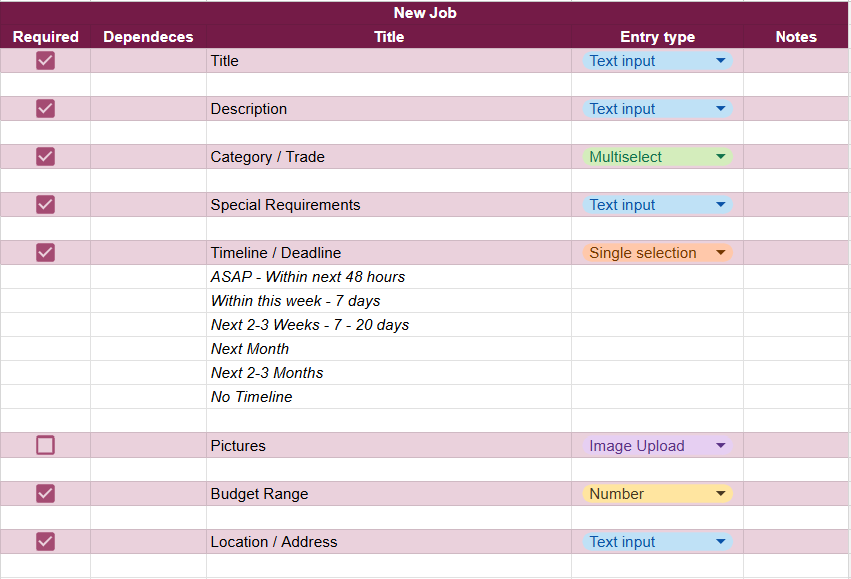
To define every form that a user role is expected to fill at any point during the process, along with all the fields inside each form. (Forms identified in Process Flow & User Flows)
Structure:
Each User Role gets its own tab. Each tab includes all forms that the role can interact with. For each Form, the user can identify:
Column | Description |
|---|---|
Field Name | The label/question shown to the user. |
Required | Yes/No – is the field mandatory? |
Field Type | Type of field: Text, Date, Dropdown, File Upload, etc. |
Comments/Logic | Extra logic, validations, conditional visibility, or helper text. |
Example:
3. Notifications Tab
Purpose:
To define all system-triggered or scheduled notifications that need to be sent to users.
Structure:
Column | Description |
|---|---|
Type of Trigger | Action-Triggered or Time-Triggered |
Trigger | The action/event or time condition that triggers the message |
Who Receives | The user role or specific users who will receive it |
Subject | Email subject line (if applicable) |
Body | The message content to be sent |
Type of Message | Email, SMS, Slack, Push, or a combination |
Example:

4. User Permission Matrix
Purpose:
To define what actions each user role can perform throughout the app.
Structure:
Column | Description |
|---|---|
Section/Tab | Where the action happens (e.g., Dashboard, Tasks) |
Action/Interaction | What the action is (e.g., Add New, View All, Edit, Approve) |
Role Columns | One column per user role. Use “X” if the role can perform that action |
Notes/Conditions | Optional – clarify rules or restrictions (e.g., "Only see their own items") |
Example:
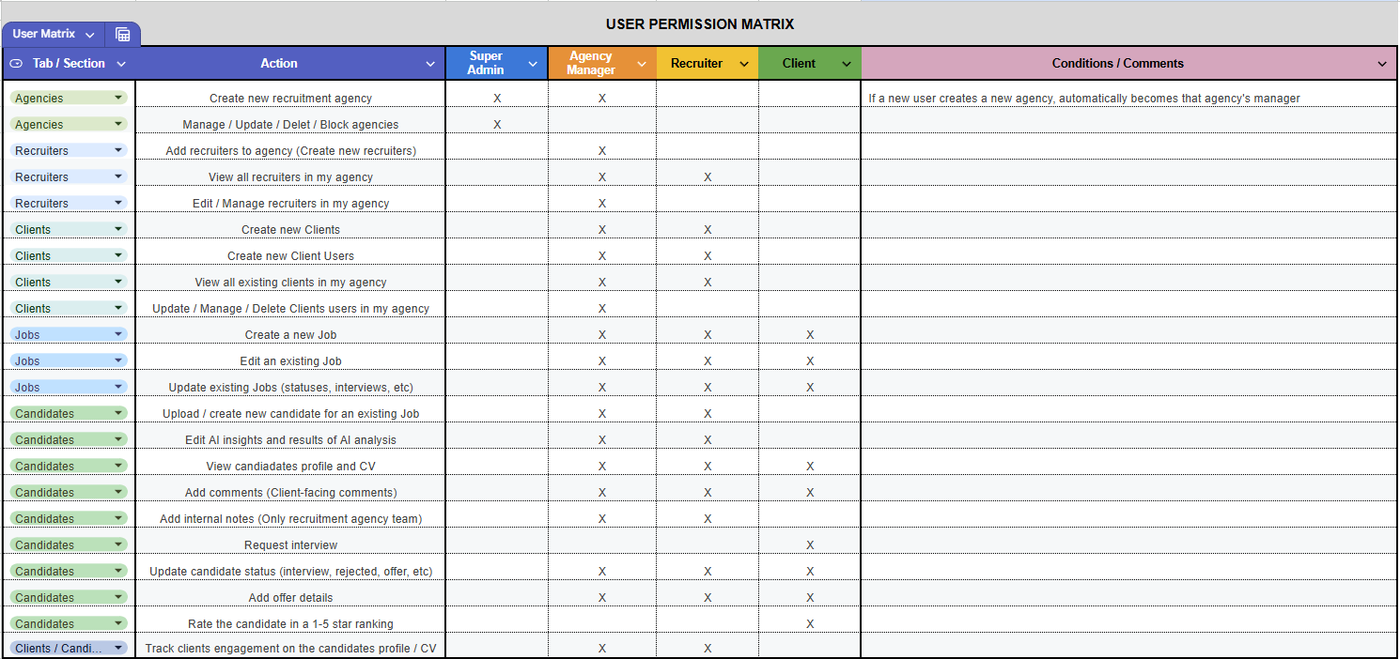
📌 Keep this in sync with what was defined in User Flows and Process Flow.
5. Reports & Outputs
Purpose:
To identify the expected reports or documents (data exports) to be generated and the details & conditions for each one.
Structure:
Column | Description |
|---|---|
Name | Name of the report / document to be generated |
Type | Type of document (PDF, CSV,XLS, other) |
Description | Brief description of the goal and content of this report/document |
Data Source | Where the data is coming from (Can reference a table, process or screen) |
Available Filters | Filters that the users can use to generat the report (e.g. Only active projects) |
Users who can trigger | List of user roles that can trigger this report/document generation |
Comments / Notes | Additional comments, conditions or notes on this report |
Sample / Template | URL to the sample of this report/document or the template (if applicable) |
Example:

6. Integrations
Purpose:
To define all external platforms the app must connect to, including access needs.
Column | Description |
|---|---|
Integration Tool | Name of the third-party service (e.g., Stripe) |
Short Description | What the tool is used for |
Who Needs Access | LowCode team member(s) who require access |
API Access Key / Token | Boolean: Mark “✔” if an API key/token is required |
Admin / Editor Access | Boolean: Mark “✔” if admin/editor login access is required |
Obtained | Checkbox: Check once access has been granted |
📌 In case the PE is not sure about which 3rd party integration to use or the feasibility of it, PE should ask for help/support from the Dev / Tech Lead in the corresponding Slack Channel.
🔹 OPTIONAL TABS (Add if Required)
7. AI Prompts
🟦 When is this used?
This optional tab is used only when the project requirements specify that AI-driven actions will occur and specific AI Prompts need to be defined.
Purpose:
To document AI prompts that will be used in the platform at each specific step of the process.
Structure:
Column | Description |
|---|---|
1. Process / Section | Where the AI action occurs in the app (e.g., “After a meeting is submitted”, “Inside the CRM notes tab”). |
2. Process / Feature Name | The internal name or label of the AI feature (e.g., “Summarize Call Notes”, “Generate Product Description”). |
3. Description of Input, Process & Expected Output | A plain-language explanation of:
|
4. Prompt | The actual AI Prompt to be used. This can include variables (e.g., [Client Name], [Input Text]) and should be ready for implementation or testing. |
🎯 This tab ensures that everyone — from designers to developers — has a clear and unified understanding of the AI’s role, behavior, and expected outcome.
8. Calculations / Formulas
For projects involving complex or non-obvious calculations, the BA should include a Calculations / Formulas tab in the Datasheet to define exactly how specific fields or metrics are derived.
Structure:
A simple 2-column table:
Column | Description |
|---|---|
Data / Field | Name of the data point, metric, or field being calculated (e.g., Total Compensation, Grand Total Costs). |
Formula | A detailed, human-readable breakdown of the logic used to compute the value. This may include variables, percentages, multipliers, or component fields. |
📌 This tab ensures the development team applies logic correctly and that the client’s business rules are consistently implemented.
Final Notes
The Datasheet should be kept in the shared Drive Folder and linked in Plutio along with other refinement assets.
Once completed, the PE should verify and confirm the content of the Datasheet with the client to gather verbal confirmation.