

How to use the FlutterFlow Template
In the template, you will find different pages divided by topic:
👉🏻 00. Instructions - START HERE: instructions on how to set everything for the HF design
❖ PROJECT FILE PAGES:
How to set the pages for the High Fidelity File
- ✅ 01. Project Cover
- ⭐️ 02. Project App Designs
- 🎨 03. UI Kit & Grids
- 📁 04. Brand Assets & Design Elements
- 🗑️ 05. Drafts [Ignore]
❖ FOUNDATION:
- 🎨 Colors & Typography
- 🖥️ Breakpoints
- 💱 Icons
❖ COMPONENTS:
- 🧩 Components
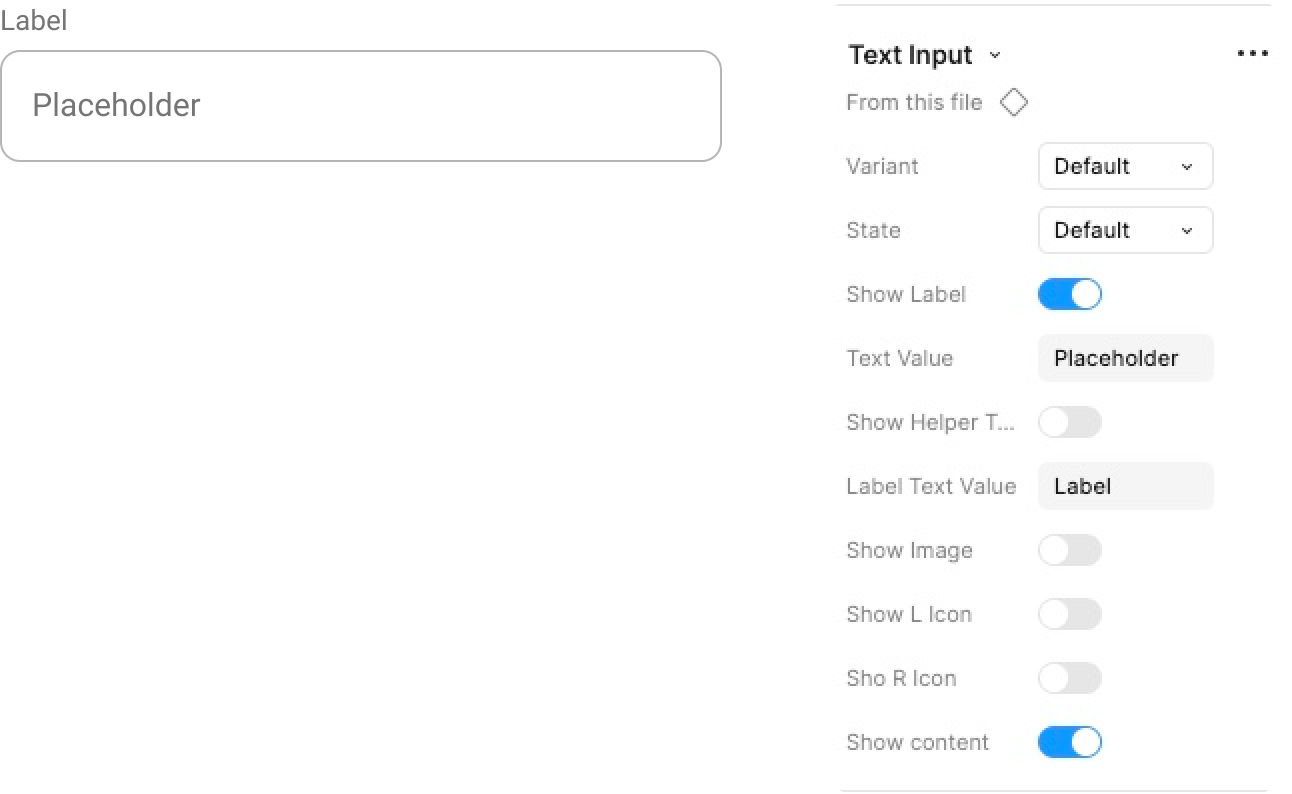
Here you will find all the components that are part of the FF template. To use these components in your design, you can visit the corresponding page, copy the element, and paste it by selecting it and maintain Shift+ Option (ALT) and moving it outside the Component Set (violet square) and then move it to where needed (you can only copy and paste it; this way, the component becomes a son and the parent is not modified). For quicker access, you can also use the Assets tab in the left navigation bar: simply search for the desired component and drag it directly into your design.
The same process applies to Icons as well.
❖ PAGE TEMPLATES
- 📱Screens
There are some pre-built pages that you can use to gain time